
How to manage VTC Invitations
Last update: 13 Mar 22:01 UTC
Short link to this article: https://truckersmp.com/kb/1915
This is a guide to explain how to manage VTC Invitations.
Note: Make sure that your role has the correct permissions under the Manage Invitations category in your VTC.
(Learn more about VTC Permissions here).
Creating an Invitation
This part will explain how you can create an invitation link to join your VTC.
- From your VTC homepage, click Invitations under the VTC Administration panel.
- On the Invitations page, click the + sign to create a new invitation link.
- Create the invitation with the settings of your choice:
- Expires after: Assign a maximum duration to your invitation: 1 hour, 12 hours, 1 day or 3 days.
- Role: Select the role within your VTC the user will automatically get after accepting the invitation.
- Note (optional): Add a note to the invitation.
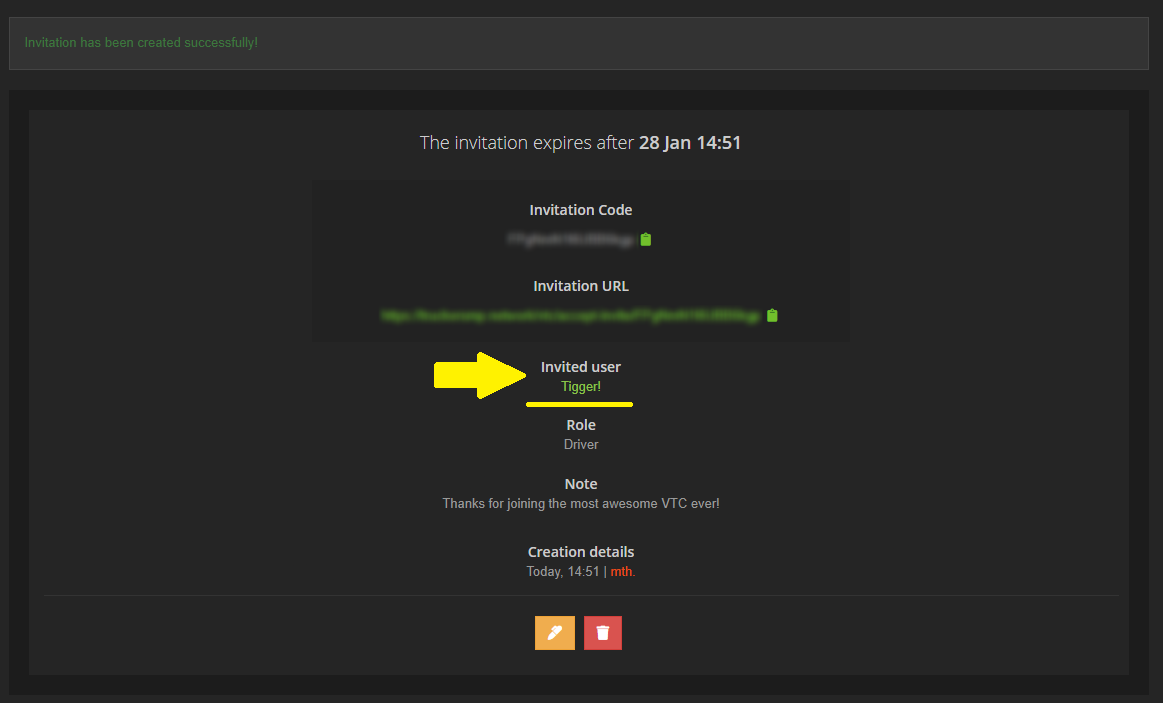
- TruckersMP ID of Invited User (optional): Create the invitation for one specific user, or leave blank if the invitation can be used by any user.
Note: You can find a user's TruckersMP ID on their profile, under Player info or in the URL of their profile page:
- Click Create an invitation to finalize the creation of your invitation.
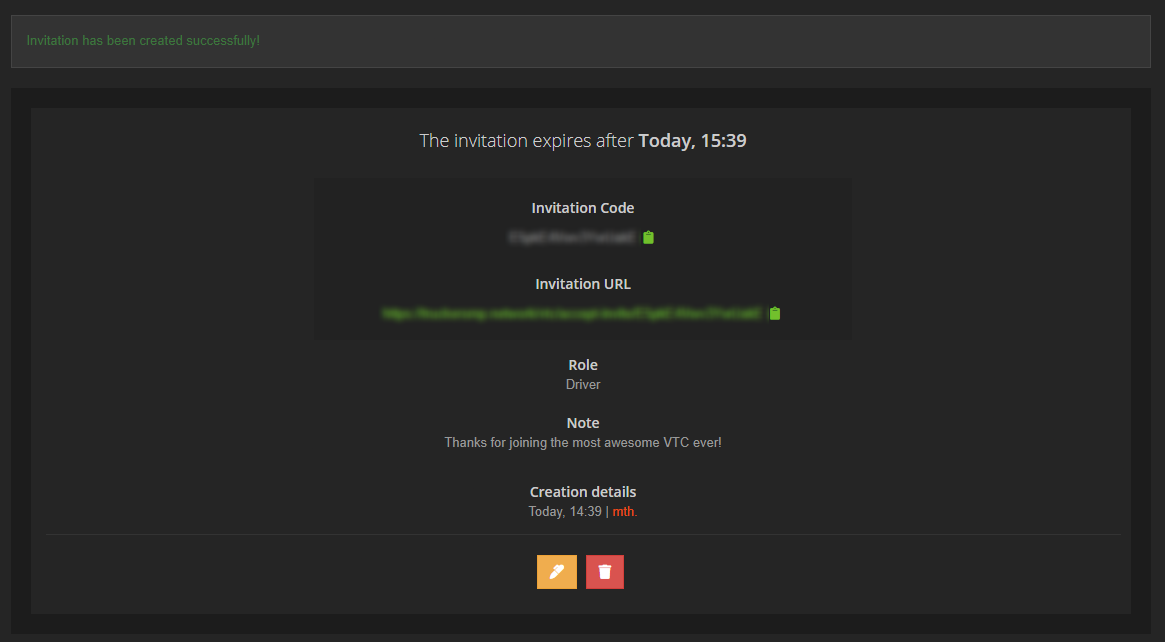
Your invitation is now created! You can send the invitation code or invitation URL to the desired user.
This is an invitation created for any user:
This is an invitation created for one specific user:
Using an Invitation
This part will explain how a user can join your VTC using an invitation.
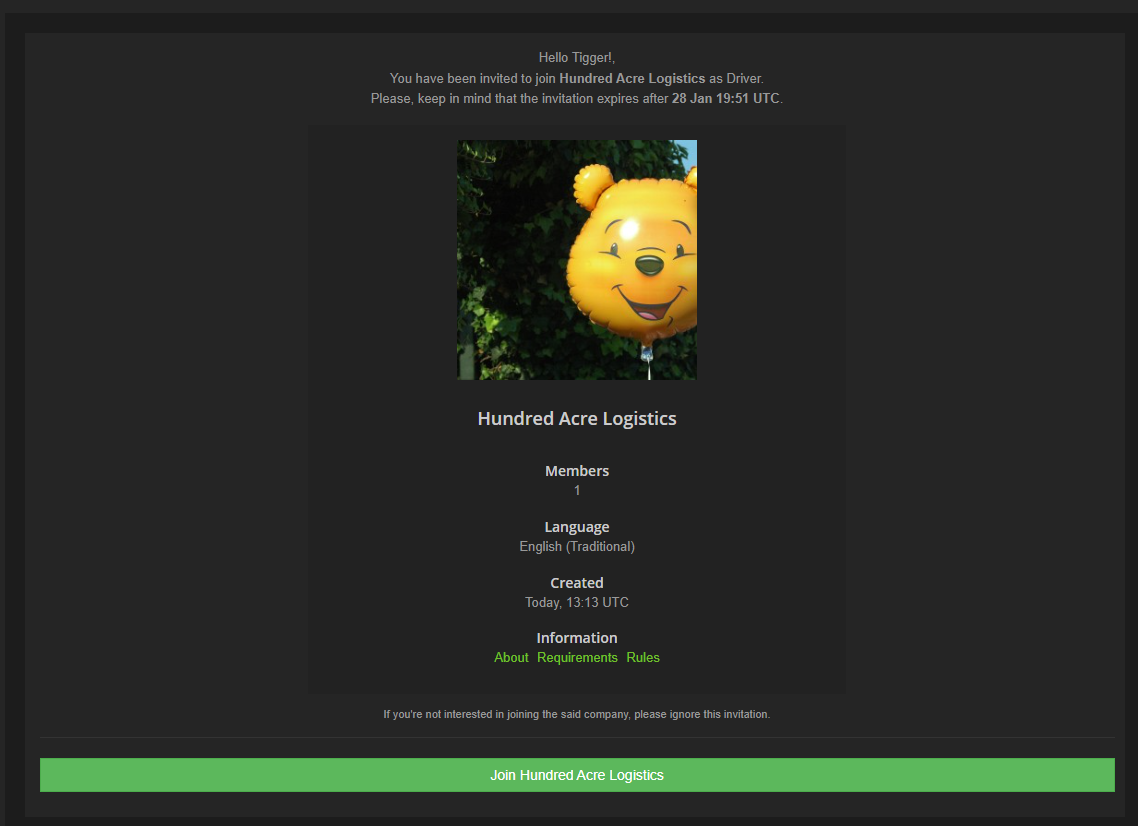
- The desired user can now use the invitation you created to join your VTC. They can use the direct invitation link or use the invitation code at https://truckersmp.com/vtc.
- The user will be prompted to the invitation screen, where they will see more information about the VTC. Then, they may click Join [VTC], and then Accept, to join your VTC:
Congratulations! You now have a new member in your VTC. They have automatically received the role you selected when creating the invitation.
Editing or Deleting an Invitation
This part will explain how you can edit or delete an existing invitation.
- From your VTC homepage, click Invitations under the VTC Administration panel.
- Click the eye icon next to the desired invitation. You can also search for a specific invitation using its code, which is useful if you have created many invitations.
- Click the pen icon to edit your invitation, or the bin icon to delete your invitation.
Editing will allow you to change the assigned role or the text in the invitation. Click Save when you are done editing.
Alternatively, if you choose to delete the invitation, simply click Delete.
Tags
Author

mth.
.png.7f07817daee1e89fac879d226c8074c2.png)
Silly bear by day, silly bear by night
Have a question for us?
→ Check out our knowledge base
→ Send us a feedback ticket
Have an idea to improve TruckersMP?
→ Send us your suggestion
Want to hang out with us?
→ Join us on Discord

Latest News
- Supporters Convoy - Sunday 28th June 2026 14 Jun 6:24 UTC
- Bye-bye CD Road 07 May 8:30 UTC
- TruckersMP 12 Year Anniversary 24 Apr 17:56 UTC
Useful Links
Support TruckersMP
2026 © All Rights Reserved. Privacy Policy | Terms of Service | Rules | Code of Conduct | Platform Status | RSS | Consent Manager