
How to manage VTC Contact Tickets
Last update: 09 Apr 20:56 UTC
Short link to this article: https://truckersmp.com/kb/1917
This is a guide to explain how to manage the VTC Contact System.
Note: Make sure that your role has the correct permissions under the Manage contact tickets category in your VTC.
(Learn more about VTC Permissions here).
Setting up the VTC Contact System
There are three main options we offer to users who wish to contact your VTC. These options are located in the upper-right corner of your VTC page:
- Website
- Contact Ticket
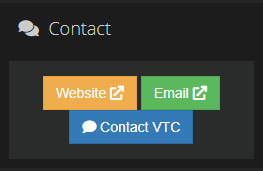
To set your contact system, you can first click Edit VTC under the VTC Administration panel on your VTC homepage.
Then, under Contact, you will be allowed to:
- Check the box if you wish to hide the e-mail button in the contact widgets in the upper-right corner of your VTC page.
- Decide who will be allowed to use the contact system to reach out to you (everyone, VTC members only, or nobody if you do not wish to have a contact system in place).
- If your VTC is Verified (red name), you will also have the option to set a Contact system redirect URL, so that the contact button will redirect the user to your own contact system.
Now, you can click Contact Tickets under the VTC Administration panel on your VTC homepage.
Then, click Edit categories to create and manage the categories of your contact system. This is a mandatory step to ensure your system works.
Sending a VTC Contact Ticket
To send a contact ticket to a VTC:
- Click the Contact VTC widget in the upper-right corner of the VTC page.
- Click the + sign to create a new ticket.
- Pick a category, a language, and write your request.
- Click Submit to send your ticket.
Receiving and answering a VTC Contact Ticket
To answer the tickets you VTC receives:
- Click Contact Tickets under the VTC Administration panel on your VTC homepage.
- Click the eye icon next to the ticket of your choice.
There, you will be able to:
- Claim a ticket for yourself (or unclaim it).
- Change the status of the ticket (Under investigation, Finished or Closed): Finished tickets will be marked as Closed after 7 days if the user does not respond, while the user will no longer be able to further comment when the ticket is Closed.
- Answer the ticket by submitting a comment.
- Set the comment visibility to either public (for the user to see) or private (for internal notes).
- Ban a user from your contact system by disabling their rights to use it.
Tags
Author

mth.
.png.7f07817daee1e89fac879d226c8074c2.png)
Silly bear by day, silly bear by night
Have a question for us?
→ Check out our knowledge base
→ Send us a feedback ticket
Have an idea to improve TruckersMP?
→ Send us your suggestion
Want to hang out with us?
→ Join us on Discord

Latest News
- Supporters Convoy - Sunday 28th June 2026 14 Jun 6:24 UTC
- Bye-bye CD Road 07 May 8:30 UTC
- TruckersMP 12 Year Anniversary 24 Apr 17:56 UTC
Useful Links
Support TruckersMP
2026 © All Rights Reserved. Privacy Policy | Terms of Service | Rules | Code of Conduct | Platform Status | RSS | Consent Manager