
How to manage VTC News Posts
Last update: 13 Mar 21:59 UTC
Short link to this article: https://truckersmp.com/kb/1914
This is a guide to explain how to manage news posts for your VTC.
Note: Make sure that your role has the correct permissions under the Manage news category in your VTC.
(Learn more about VTC Permissions here).
Creating a News Post
This part will explain how you can create a news post from scratch.
- From your VTC homepage, click News Post under the VTC Administration panel;
- Click + News in the upper-right corner of the page;
- On the Create page, you will have access to all the tools you need to create your post.
First, you can create your news title and description. This is the information about the post that will appear on your VTC homepage, and under Latest VTC News in the VTC Section of the website if your VTC is Validated or Verified.

Then, you will be able to create the news itself. You can click here for more information about the markdown styling you can use to help make your post stand out.
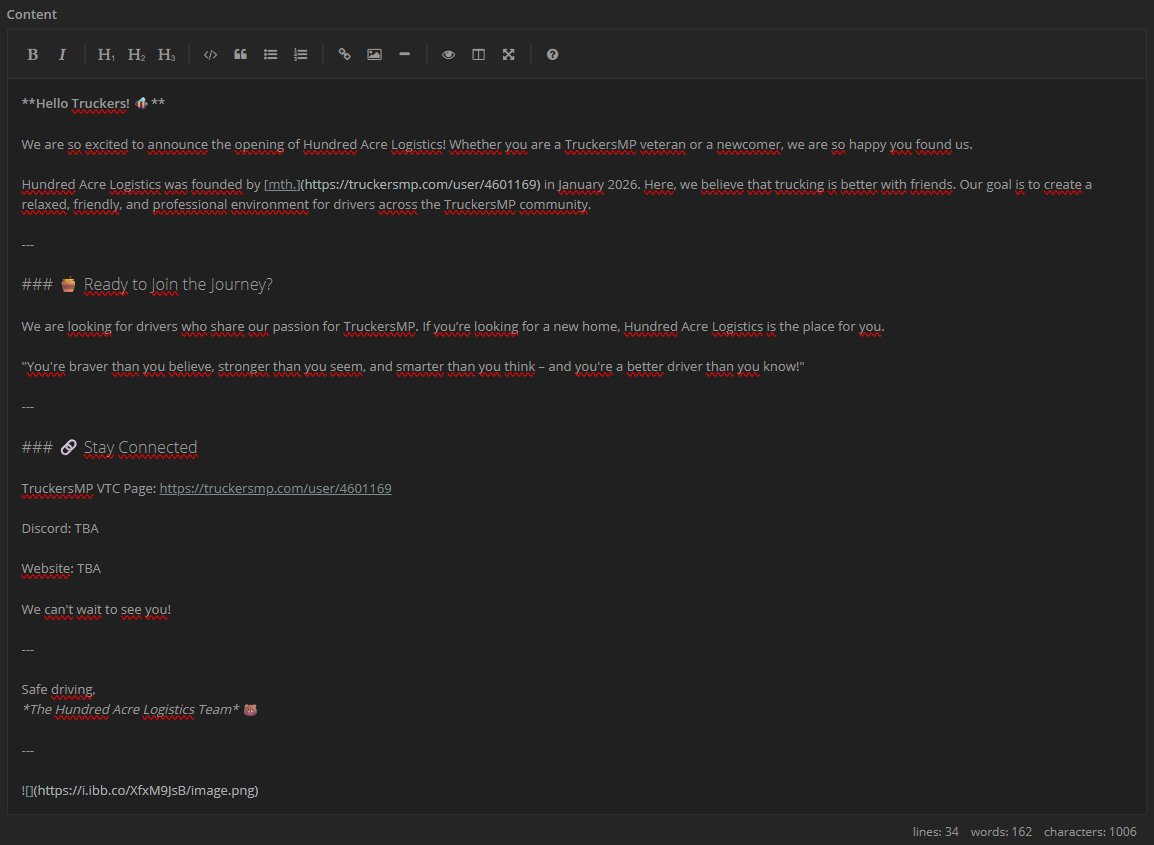
Finally, you will have access to a few options before you post the news:
- Order: You can assign an order (0, 1, 2, 3, etc.) to your post if you want it to appear in a certain order on your VTC homepage. Do not use this option if you want your news to appear chronologically (from newest to oldest).
- Pinned: Check this box if you want to pin your post. This way, it will always appear first on your VTC homepage. You can have several posts pinned, and assign them a specific order using the Order option.
- Make it visible for members only: Check this box if you want to create an internal post for your VTC members that will only be visible to them.
- Published at (UTC): You can choose a custom publishing date, for example if you want the post to be published at a later date or time.
- Disable Reactions: Check this box if you do not want users to have the possibility to add reactions to the post.
Note that all your posts have a value of 0 by default in the order. The 0 value has higher priority than 1, and pinned posts have higher priority than non-pinned ones. Your VTC posts will be displayed in that order:
- Pinned post, order 0;
- Pinned post, order 1;
- Pinned post, order 2, etc;
- Non-pinned post, order 0;
- Non-pinned post, order 1;
- Non-pinned post, order 2, etc.
Posts of equal value (same pin status, same order number) will appear chronologically from newest to oldest.
- Now, you can finally click Post it! when you are ready to post your news!
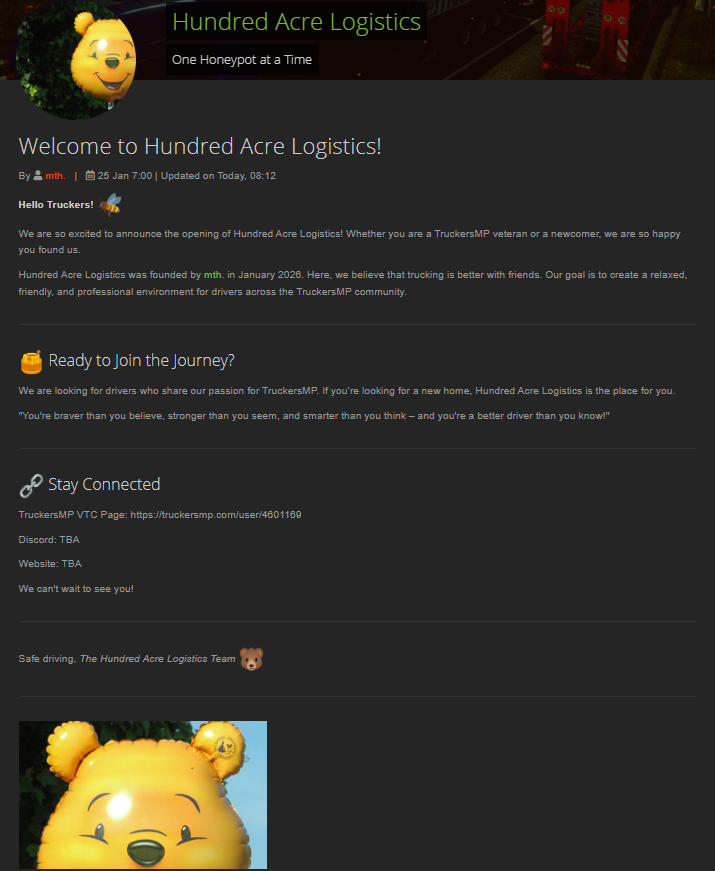
Now, you can click View post or go back to your VTC homepage to see the result. If you go back to your VTC homepage, you will see the title and description you created for the post, as well as the publishing time and the author of the news.
And this is the final result for the news:
Editing an Existing News Post
This part will explain how you can edit an existing news post.
- From your VTC homepage, click News Post under the VTC Administration panel;
- Click the pencil icon to edit your post. Alternatively, if you are already viewing the desired post, you can click Edit News on the news page;
- Make the desired modifications to either the title, description, text or options;
- When you are done, click Update it! to post your modifications.
You will receive a confirmation that the modifications have been posted:

Deleting a News Post
This part will explain how you can delete an existing news post.
- From your VTC homepage, click News Post under the VTC Administration panel;
- Click the pencil icon to edit your post, Alternatively, if you are already viewing the desired post, you can click Edit News on the news page;
- Click Delete at the bottom of the page;
- Confirm that you really want to delete the post.
You will receive a confirmation that your post was deleted successfully:

Tags
Author

mth.
.png.7f07817daee1e89fac879d226c8074c2.png)
Silly bear by day, silly bear by night
Have a question for us?
→ Check out our knowledge base
→ Send us a feedback ticket
Have an idea to improve TruckersMP?
→ Send us your suggestion
Want to hang out with us?
→ Join us on Discord

Latest News
- Supporters Convoy - Sunday 28th June 2026 14 Jun 6:24 UTC
- Bye-bye CD Road 07 May 8:30 UTC
- TruckersMP 12 Year Anniversary 24 Apr 17:56 UTC
Useful Links
Support TruckersMP
2026 © All Rights Reserved. Privacy Policy | Terms of Service | Rules | Code of Conduct | Platform Status | RSS | Consent Manager